Hey there! I’m thrilled you’re here today! Are up to your eyeballs in Halloween spirit yet?
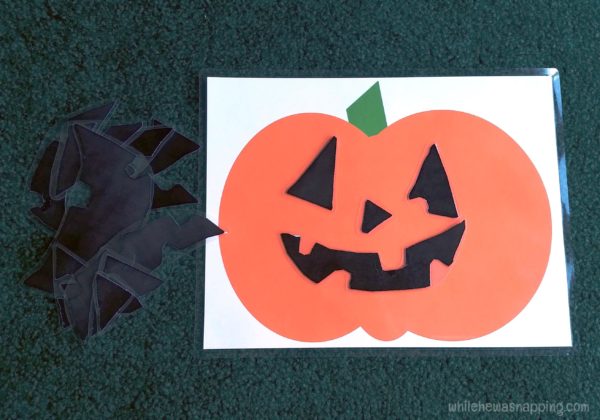
Today, I have a fun Jack-O-Lantern printable for you. I have been trying to take more teaching moments with Little J. He doesn’t have nearly the itching desire to learn like Big J seems to and it’s been harder to take educational moments with him and it’s been frustrating. Not to mention, I have an 18-month old who’s daily mission seems to search-and-destroy. I think he’s succeeding. Ah, well, we need to get rid of stuff before Christmas gets here anyway, right?
BUILD A JACK-O-LANTERN PRINTABLE



 Setting up Amazon Cloud Storage is easy and only takes a few moments. Here’s step-by-step directions to get you started. Don’t lose precious moments because your device gets lost or ruined. Take a moment and set this up, especially if you already have Amazon Prime! If you don’t have Prime, Amazon has two price plans:
 Ok, ready? Watch how easy it is to set this up. It does take a little bit of time – maybe 20 minutes – but it’s so worth knowing your photos won’t be lost even if you have some sort of disaster.


 Now, it’s on your desktop and you can backup your computer. But what about all those photos on your phone?! Installing Amazon Cloud Drive on your phone is even easier than on your desktop – and probably what you really want anyway. Save the photos! Here’s what to do to set it up on your mobile device.


 In addition, the Amazon Photo app allows you to access your photos and personal videos across devices (for example family photos you may have uploaded via the web). I set up instant upload to the cloud for the gallery on my mom’s phone. She was able to delete the photos that were taking up 13 GB on her phone. Her phone ran much more smoothly after that. Shocking, I’m sure. But she can now see photos she takes with her phone on her larger tablet screen. And, whenever she takes new photos, they will automatically back up to the cloud. Even if she looses her phone or it breaks or it gets ruined, her photos and files are safe. That is the most important thing to me in cloud storage. Instant upload for my photos and lots of space to store them all. I use my phone not only to capture photos of my kids and our lives, but for my blog as well. I love knowing I won’t lose my photos if something happens to my phone, but it is also incredibly convenient to have my blog photos automatically backed up to the cloud. It cuts out a step in the whole “composing a post” process, because I don’t have to transfer my photos to my computer. Not only that, I don’t have to worry about storing them on my hard drive, taking up valuable hard drive space; and, there’s no threat of my hard drive crashing and loosing all the time I’ve spent on editing those photos. I spend an average of 1-2 hours editing photos for a single post and I love knowing my time spent editing won’t disappear if my computer crashes. Storing to the cloud is just super convenient!